Most people arrive with a spreadsheet: a list of what was paid, and sometimes what was advanced, kept by one person and seen by nobody else. You do not have to retype it. Set the loan up once with its terms, then upload the sheet as a CSV and the whole history comes across in one go.
Before you import
Create the loan first, with the terms from your spreadsheet: the amount (or the credit limit, for a line of credit), the interest rate, the duration, the payment frequency and the first payment date. The import only adds history to a loan that already exists; it does not create the loan for you.
If the loan already has payments recorded by hand, check that the file does not contain those same payments again. The import adds rows, it does not replace or de-duplicate them.
Prepare the file
Export the sheet as CSV (in Excel: File, Save As, CSV; in Google Sheets: File, Download, Comma Separated Values). The first row must be a header. Columns can be in any order and are matched by name:
| Column | Required | What goes in it |
|---|---|---|
date | yes | 2026-06-01 or 06/01/2026 (month first). Written months work too: Jun 1, 2026. |
amount | yes | The amount. A currency symbol and thousands separators are fine: $1,250.00. |
type | no | payment (a regular installment, the default), extra (goes straight to principal), or draw (money advanced on a line of credit, raises the balance). |
note | no | Anything you want to remember about the row, up to 200 characters. |
A minimal file looks like this:
date,amount,type,note
2026-06-01,400.00,draw,June rent shortfall
2026-07-01,250.00,draw,July rent shortfall
2026-08-20,200.00,payment,Paid back part of the balance
Two things the import deliberately refuses, so you never get a silently wrong history: dates written day-first with numbers only (01/06/2026 could be January or June), and two-digit years. Use the ISO form if your sheet has either.
Import it
- Open the loan and find Payment History.
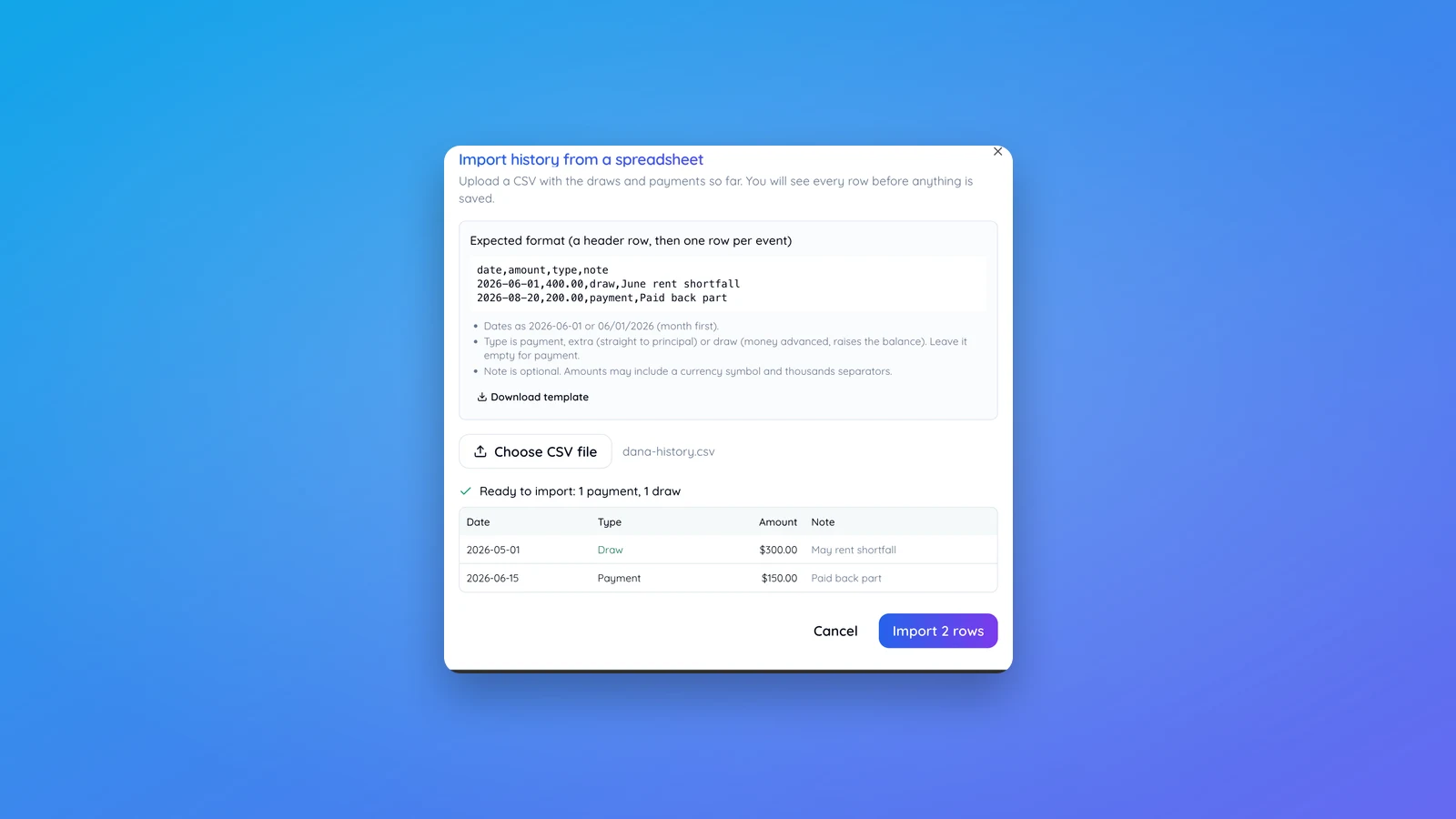
- Click Import, next to Export History. The dialog shows the expected format and has a Download template link if you would rather start from a file that is known to work.
- Choose CSV file and pick your export.
- Check the preview. Every row is listed with its date, type, amount and note. If anything in the file could not be read, the dialog lists each problem with its line number and the Import button stays disabled until the file is fixed. Nothing is saved at this point.
- Click Import. All rows are saved together; if anything fails, nothing is saved.
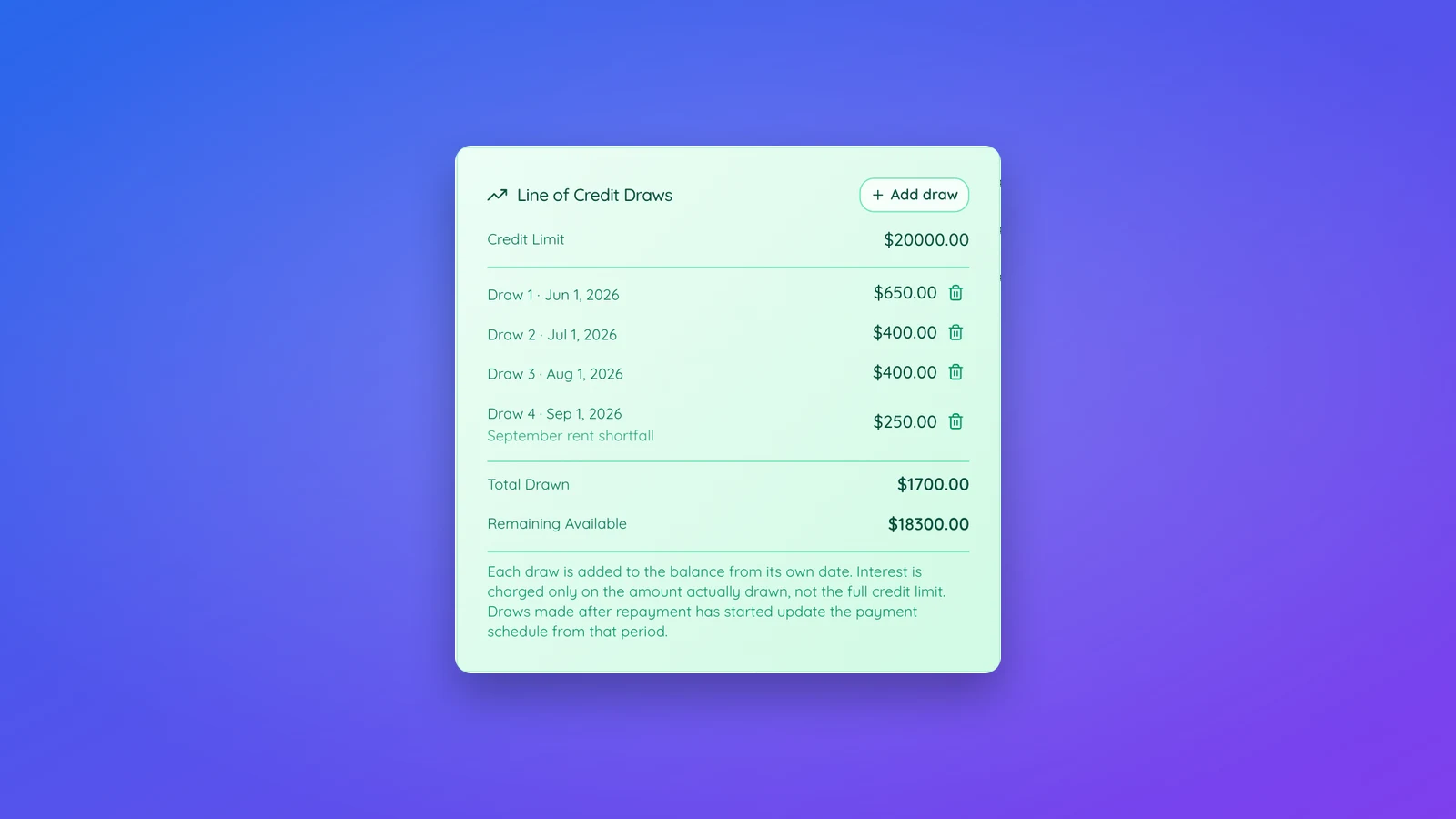
The balance, the payment schedule and the charts are recalculated from the imported history straight away. Imported payments appear in the Payment History with their note, and imported draws appear on the Line of Credit Draws card.
What the types mean for the numbers
A payment is matched to the schedule period its date falls in and is split into interest and principal the way a regular installment would be. An extra payment goes entirely to principal. A draw raises the balance from its date: before the first payment date it accrues interest daily, after it the schedule is updated from that period. If the draws in the file add up to more than the credit limit, the limit is raised to match and the dialog tells you.
Draws can only be imported into a loan that was set up as a line of credit, and only by the loan owner. Payments can be imported by either participant.
Coming from a spreadsheet with a fixed payment
Many amortization spreadsheets, often set up by an accountant, work from a fixed payment: $1,200 a month, however long that takes. Set the loan up the same way: under Duration choose Set payment and enter the amount. Family Loan Tracker keeps that exact payment, works out the term, and makes the last payment whatever is left. Each payment's interest is the balance times the annual rate divided by the number of payments a year, the same formula those spreadsheets use, so with the same starting balance the interest matches to the cent.
If your sheet starts with a month that has no payment, where that month's interest was added to the balance, enter the balance after that month as the amount and the first real payment as the first payment date. A grace period in Family Loan Tracker would compound that interest daily instead, which can differ by a few cents.
When the numbers do not match your spreadsheet
The most common reason is that the spreadsheet applied payments differently: interest calculated on a different day, or an extra payment treated as a regular one. Compare the first few rows of the schedule with your sheet. If a payment should have gone to principal only, delete it from the Payment History and re-import that row as extra. If the loan terms were entered differently from the sheet, correct them in Manage loan (see how to change your loan's terms) and the history is re-applied automatically.